 FARM
FARMGuide
Banned From Posting on Instagram? What to Check
Banned from posting on Instagram? Use this worksheet to record the notice, check Account Status, and prepare a focused support request.
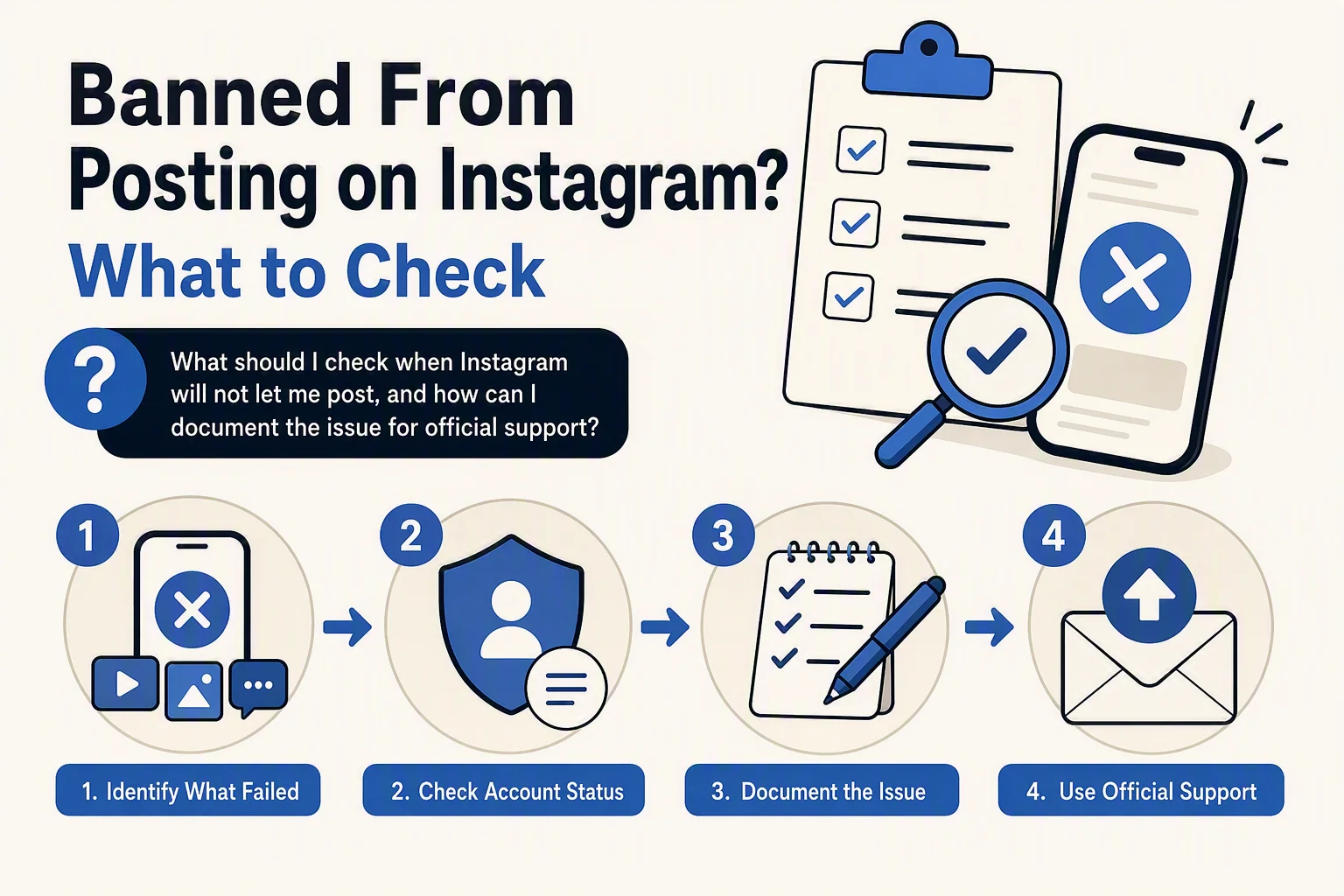
Start by separating a failed post from a restriction
If you’re banned from posting on Instagram, don’t assume the account has been banned. First record exactly what failed: a feed post, Story, Reel, comment, or another action. A failed upload can come from the media, connection, app, or account. A visible restriction notice is different, and a disabled account is a separate situation.
The first useful result is a clear record of what Instagram shows, including whether a restriction or a reason is visible. If the outcome is unclear, stop repeating the action and document it before trying again.
Check the official account information first
Open Instagram’s account-status or support area from the affected account and look for a notice connected to the action that failed. Labels and paths can change, so follow the options visible in your current app rather than relying on an old screenshot or a guessed menu name.
Meta said Account Status on Instagram helps people understand why content has been removed and what policies it violates. Meta’s March 2022 report
Record the exact wording of any notice you can see, or write “no related notice shown” if none appears. Don’t turn a notice into a prediction about how long the problem will last. Keep the visible information separate from your own explanation of its cause.
If the app shows an appeal, review, or request-review option, read the prompt carefully and use that official route. Keep your explanation factual. State what you tried, when it happened, what notice appeared, and why you think the action may have been mistaken. Avoid guessing at a policy violation you can’t see.
Meta said it is rolling out a centralized support hub on Facebook and Instagram where users can report an account issue and find quick answers with Meta AI-powered search. Meta’s December 2025 announcement
Meta described the centralized support hub rollout as global on Facebook and Instagram for iOS and Android. Meta’s December 2025 announcement
These dated announcements describe the support options Meta introduced. Follow what your account shows now; the announcements do not establish that every account has the same screen or will receive the same result.
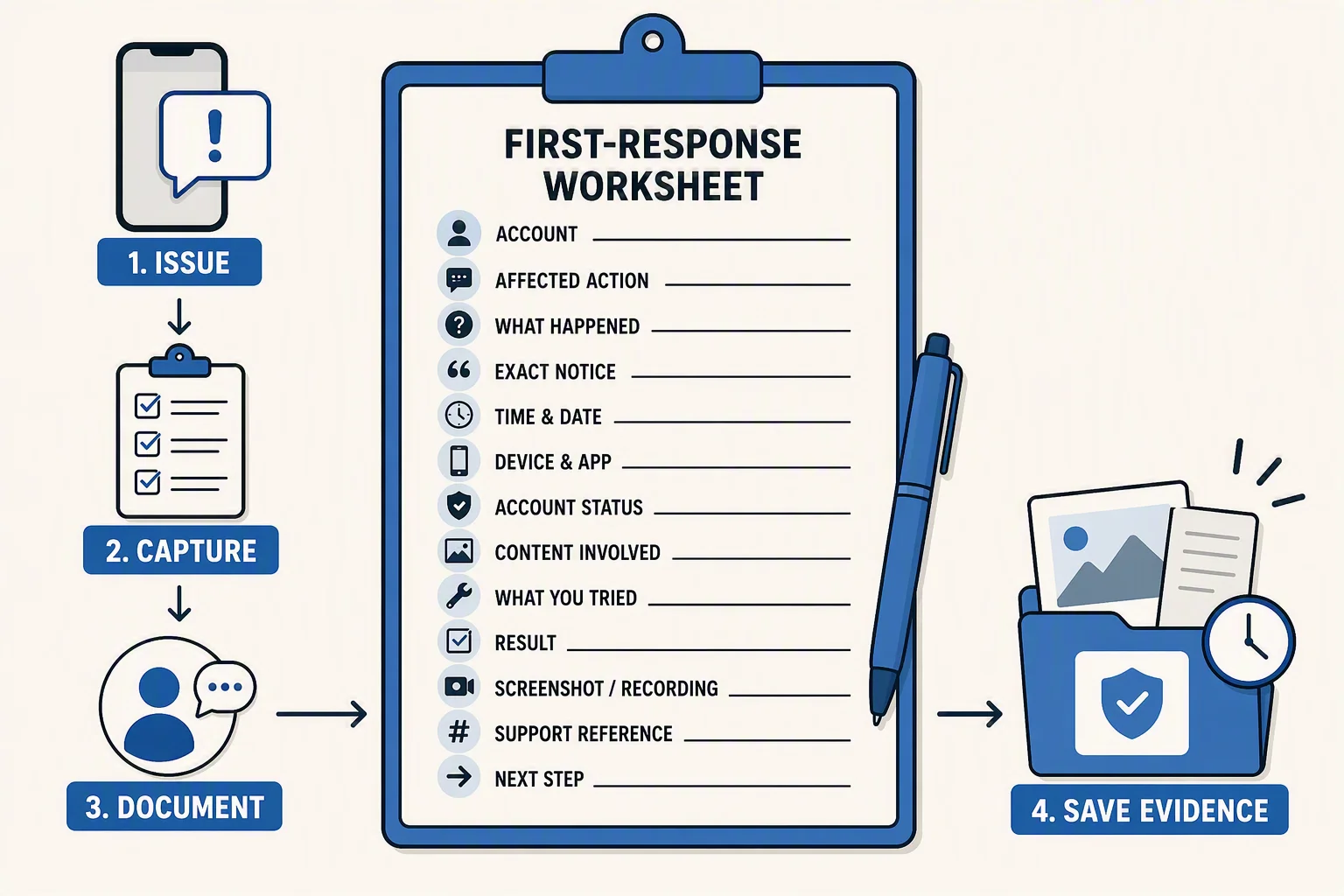
First-response worksheet
Copy this worksheet into your notes before you submit support:
- Account username:
- Affected action: Feed post / Story / Reel / comment / other
- What happened: Upload failed, publish failed, content disappeared, or action was blocked
- Exact notice: Copy the full wording, including punctuation
- Time and date, including time zone:
- Device and app version, if visible:
- Account Status result: Notice found / no notice / unable to load
- Content involved: Short description of the media, without changing the original file
- What you tried once:
- Result of that attempt:
- Screenshot or screen recording saved: Yes / no
- Official review or support reference:
- Next step: Wait for review / submit appeal / report technical issue
Save the original notice and the time before you edit the caption, replace the media, or make repeated attempts. If you can’t see a reason, write “no reason shown” rather than filling the gap with a theory.
Three hypothetical symptoms and the right next check
Hypothetical: “Your account can’t post right now”
This is a restriction notice, but the wording alone doesn’t establish its cause or duration. Capture the notice, check Account Status, and look for an official review option. If a policy item is listed, include its wording in your record. If no reason is listed, submit a concise support report through the available official route and mark the cause as unknown.
Hypothetical: Stories fail, but the feed works
This could be a Story-specific publishing problem, a media problem, or an account-level issue. Don’t label it an “Instagram Story ban” until Instagram shows a restriction or related notice. Save the Story error, note whether a different ordinary action works, and check Account Status. You can also follow the app’s normal troubleshooting prompts without repeatedly reposting the same material.
Hypothetical: Nothing posts and Account Status shows no related notice
Treat this as unresolved rather than confirmed enforcement. Record the failed action, exact error, time, file type or media description, and whether the failure repeats. Then use the official support or report-a-problem path visible in the app. If the result remains unclear, stop testing and preserve the record for follow-up.
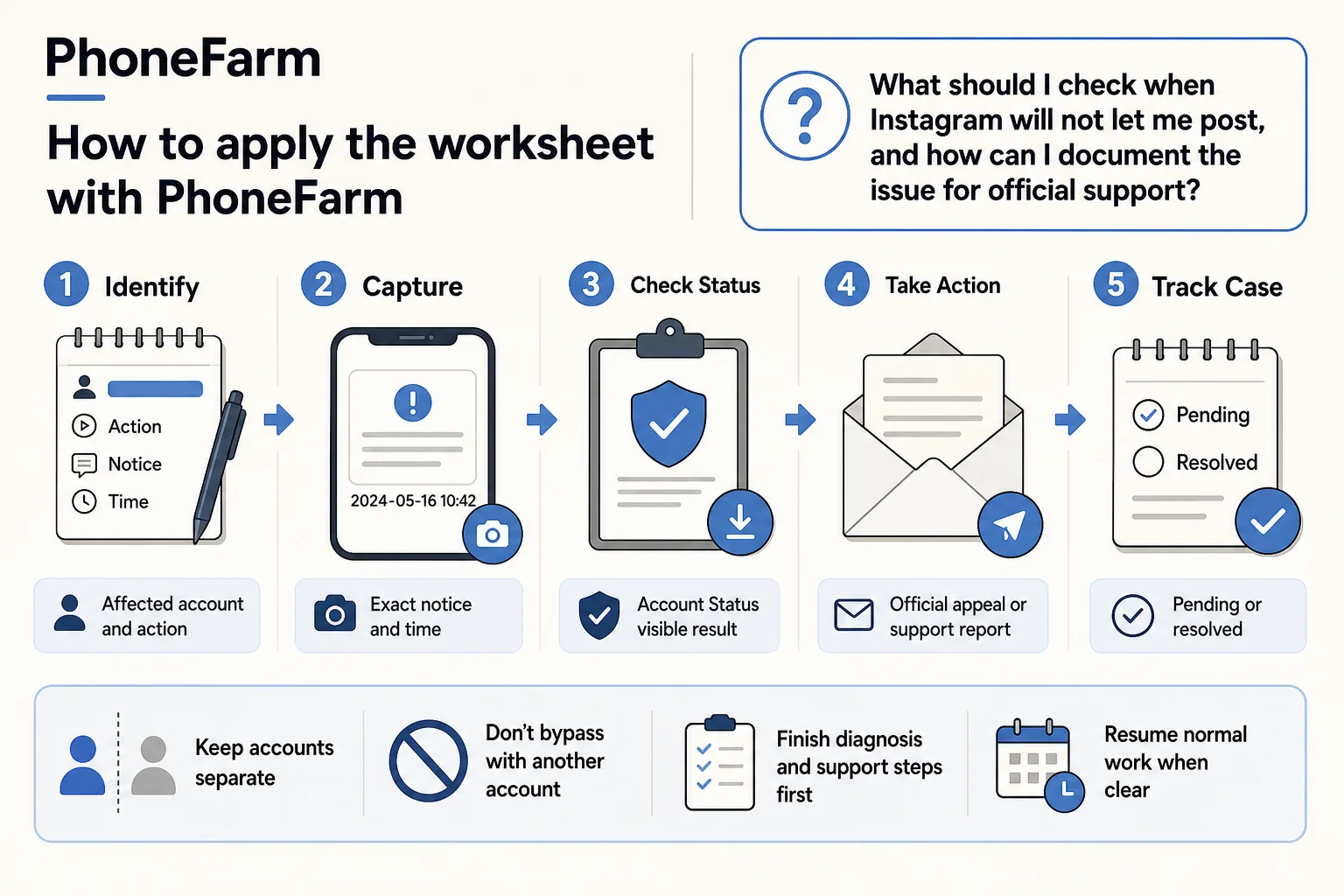
How to apply the worksheet with PhoneFarm
PhoneFarm lets you open and use multiple Instagram accounts. After the support step, use the worksheet to label the affected account, action, notice, timestamp, and support reference. Keep normal account operations separate from the account under review, and don’t treat a different account as a way to remove enforcement.
Instagram, TikTok and YouTube are available on PhoneFarm. Availability doesn’t establish identical automated actions, account eligibility, or third-party subscription terms. For this issue, finish the platform’s diagnosis and support steps before returning to ordinary account work.
Use this sequence:
- Identify the affected account and action.
- Capture the exact notice and time.
- Check Account Status and save the visible result.
- Submit an official appeal or support report when Instagram provides one.
- Mark the case as pending or resolved.
- Resume ordinary work only when you understand which account and action are affected.
For account preparation and related operating checks, see Instagram and YouTube readiness, account security, and managing multiple Instagram accounts. For a failed upload or publishing issue, use publishing failed and upload failed. Keep broader planning in publishing, and return to the PhoneFarm blog for related guides.
Copyable support brief
Use this short version when an official form asks for a description:
Username: [username]

Affected action: [feed post, Story, Reel, or other]

Date and time: [date, time, time zone]

Exact notice: “[paste notice]”

Account Status result: [paste result or “no related notice shown”]

What I tried: [one clear attempt]

Result: [exact result]

Request: Please clarify whether this is a content or feature restriction, a technical publishing issue, or another account problem, and advise on the appropriate review or support step.
Attach only the evidence the official form requests. Don’t claim that the account was banned if the screen only shows a publishing error. Don’t claim that a restriction was lifted unless the account status or posting result clearly supports that conclusion.
Decision table
| What you can see | What to do next | What not to conclude |
|---|---|---|
| A notice names removed content or a policy area | Save it, check Account Status, and use the displayed review route | Don’t infer a standard duration |
| A posting restriction is visible but the reason is unclear | Record the wording and submit an official support report | Don’t invent a trigger |
| No notice, but posting fails | Record the error and use technical support prompts | Don’t call it a ban |
| An appeal or review is pending | Keep the reference and avoid repeated submissions | Don’t assume approval or rejection |
Next step
If you’re managing several accounts, turn each worksheet into a dated record and keep the affected account’s support case distinct. When the issue is documented and you’re ready to organize normal account operations, review PhoneFarm’s pricing.