 FARM
FARMGuide
YouTube Shorts Related Video: A Practical Guide
Choose and verify a useful YouTube Shorts related video with a destination framework, checklist, and tracking sheet for product-demo teams.
The short answer
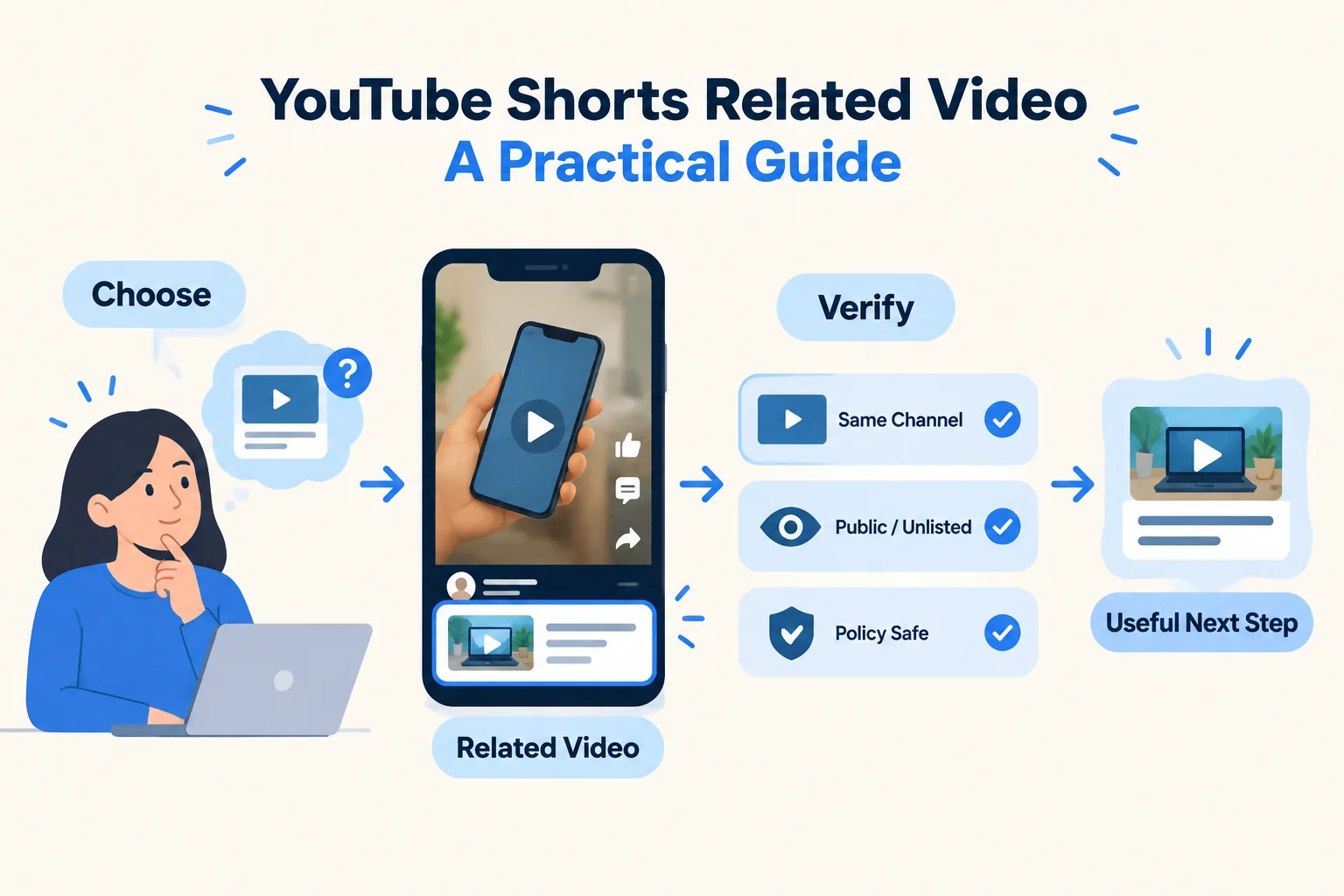
Choose the YouTube Shorts related video that answers the next question created by your Short. For a product-demo Short, that usually means sending viewers to a deeper demonstration, setup walkthrough, comparison, or use-case video instead of a generic channel trailer.
YouTube says a related video can be added after a Short is uploaded to showcase another video, Short, or live stream from the same channel in the Shorts player. Source
Viewers see the related video as a clickable link below the channel handle, intended to complement the Short and encourage more viewing of the creator's content. Source
That gives you one useful job: make the click feel like a natural next step. The viewer shouldn't have to search your channel, decode a description, or guess which longer video explains the promise made in the Short.
PhoneFarm can fit into the operating routine when your team needs to open the relevant social app while maintaining normal account workflows. Instagram, TikTok and YouTube are available on PhoneFarm. For account-operation checks before publishing, use the Instagram and YouTube readiness guide. To assess whether PhoneFarm fits your workflow, see PhoneFarm pricing.
What YouTube's control does
YouTube documents the Studio path as Content, select the Short, choose a Related Video from the channel, and save it. Source
The selected related video must be public or unlisted, comply with Community Guidelines, and adding this feature requires advanced feature access. Source
So this is not a free-form external link field. It is a same-channel content choice inside YouTube. Before you open Studio, identify the question your Short raises and the existing YouTube destination that resolves it. Then verify that the destination has the right visibility and is suitable for the platform's rules.
YouTube states that URLs placed in Shorts descriptions and Shorts comments are non-clickable, distinguishing those URLs from the clickable related-video link. Source
YouTube notes that channel profile links can be used to showcase links on the channel page, with separate eligibility and management information referenced by YouTube. Source
That distinction matters for marketers. A related video can continue a viewing path inside YouTube. A channel profile link serves a different navigation job on the channel page. A URL typed into a Short description or comment should not be treated as the main path for this task.
A destination-choice framework
Use this sequence for each Short:
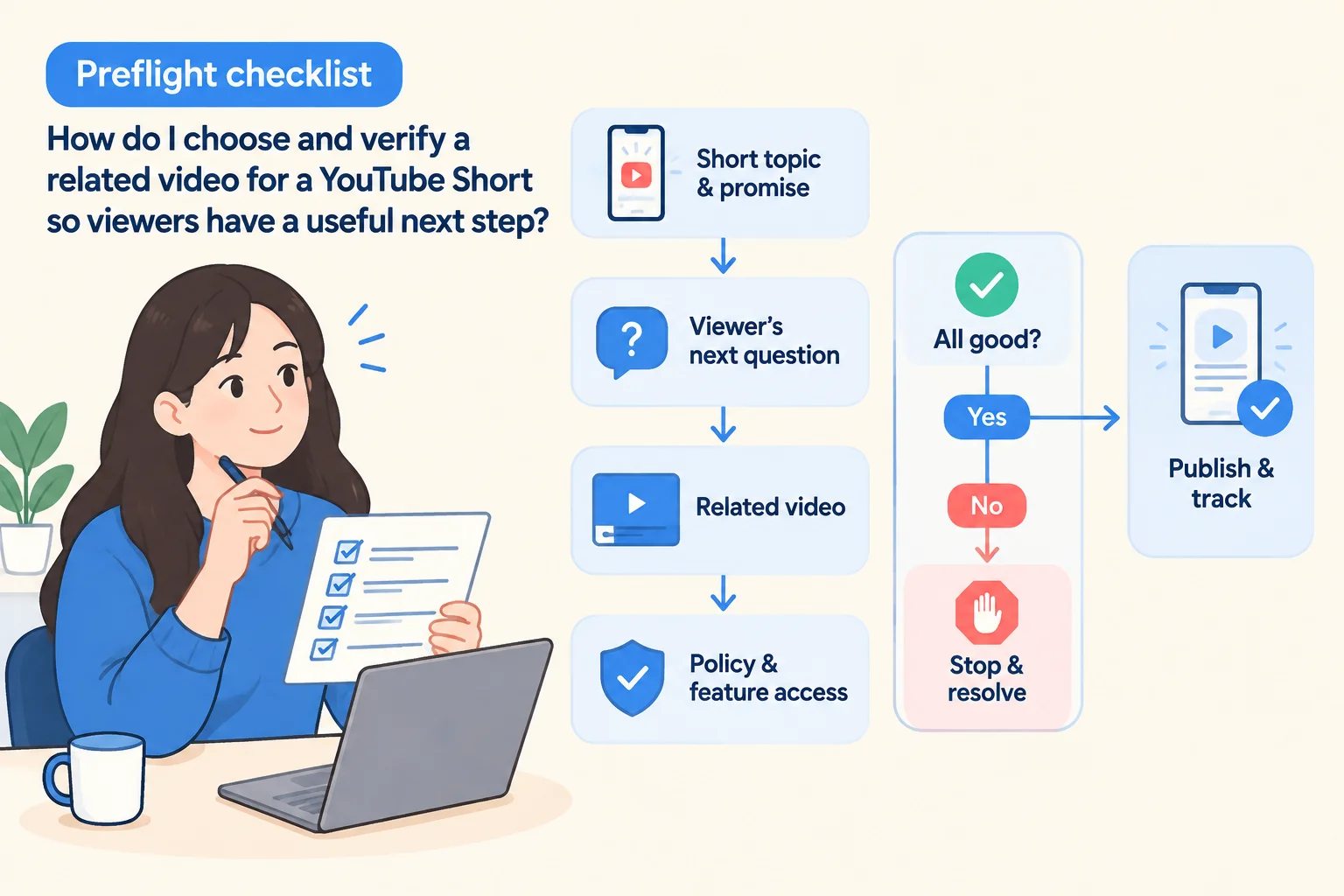
- Write the viewer's immediate question in one sentence.
- Identify the next useful answer, not merely the next promotional asset.
- Select the strongest matching YouTube video, Short, or live stream from the same channel.
- Check the destination's visibility and policy status.
- Add the related video in Studio and save it.
- Reopen the Short's details and confirm that the intended destination is still selected.
- Open the published Short as a viewer and follow the related-video link below the channel handle. Check that it opens the intended video, with the expected title, channel and content.
- Record the pairing, viewer-check result and date in your tracking sheet.
The final confirmation matters because a content calendar can name one destination while the published Short points to another. Keep the recommendation separate from the platform's documented controls: the framework above is an operating practice, not a claim that YouTube endorses a specific funnel.
| If the Short does this | Choose this destination | Avoid choosing |
|---|---|---|
| Shows one feature in under a minute | A full feature demonstration | A broad company introduction |
| Answers one setup question | A step-by-step setup video | An unrelated product tour |
| Compares two approaches | A deeper comparison or decision guide | A video that repeats the same opening |
| Teases a result or workflow | The complete workflow explanation | A destination that leaves the teased question unanswered |
| Introduces a problem | A practical solution video | A sales video with no useful next step |
Worked example: a language-learning app
Hypothetical example. Imagine a language-learning app team has three Shorts and three longer YouTube destinations. The team should not send every Short to the same overview video. Each pairing should continue the specific thought introduced in the Short.
| Short | Viewer sees | Viewer likely asks | Related video | Why it fits |
|---|---|---|---|---|
| Short 1: “Learn five travel phrases” | Five phrases demonstrated quickly | “How do I practice these in a real situation?” | “A 10-minute airport conversation lesson” | It turns the sample phrases into a guided lesson. |
| Short 2: “Fix this pronunciation mistake” | One common sound corrected | “How can I practice this sound?” | “Pronunciation drills for beginners” | It provides repetition and a clear practice method. |
| Short 3: “Build a seven-day study habit” | A simple daily routine | “What should each day look like?” | “Seven-day beginner study plan” | It expands the routine into a usable schedule. |
For each row, the editor checks whether the named destination is public or unlisted, belongs to the same channel, and fits the viewer's next question. The editor then records the Short URL, destination URL, date checked, owner, and any later change.
The result is a small map of viewer intent. If a destination cannot answer the question raised by the Short, replace it before publishing rather than hoping a description URL will carry the viewer onward.
Publishing and verification checklist
Copy this checklist into your publishing brief. Prepare the destination and access checks before publication, then complete the saved-selection and viewer-facing checks once the Short is published:
- Short topic and promise are written in one sentence.
- The viewer's next question is written in plain language.
- One same-channel destination answers that question.
- Destination type is identified: video, Short, or live stream.
- Destination visibility is public or unlisted.
- Destination has been checked against Community Guidelines.
- Advanced feature access is available for the account.
- Related video is selected in YouTube Studio.
- The Short is saved after the selection is made.
- The selected destination is rechecked after saving.
- The viewer-facing related-video link opens the intended title, channel and content.
- The viewer-check result and date are recorded.
- External URLs are not being treated as clickable links in the Short's description or comments.
- The pairing is entered in the tracking sheet.
If advanced feature access is not available, stop at diagnosis instead of promising that the control will appear. Resolve account or feature-access questions through YouTube's own account processes, then return to the checklist.
Copyable Short-to-video tracking sheet
Paste this worksheet into your content system:
Short title:
Short URL:
Viewer promise:
Next question created by the Short:
Chosen related video:
Destination URL:
Destination type: video / Short / live stream
Destination visibility: public / unlisted
Same-channel check: yes / no
Community Guidelines check: passed / needs review
Advanced feature access checked: yes / no
Related video saved in Studio: yes / no
Final selection rechecked: yes / no
Viewer-facing link result: not yet checked / expected destination / missing / wrong destination / inaccessible
Viewer-check date:
Date checked:
Owner:
Change needed:
Next review date:
Use the completed row to make a decision. If the same-channel check, visibility check, policy check or save confirmation is incomplete, leave the row open and assign an owner. Do the same if the viewer-facing link is missing, opens the wrong destination or cannot be opened. If every required check passes but the destination still does not answer the viewer's next question, choose a better destination before relying on the pairing.
Applying the workflow with PhoneFarm
PhoneFarm is relevant when your team handles several social accounts and wants a consistent place for ordinary app operations while following its own publishing checklist. Instagram, TikTok and YouTube are available on PhoneFarm. Keep the product role narrow here: use YouTube's own guidance for related-video eligibility and selection, then use your internal sheet to control the content decision and verification step.
A practical order is simple. First, complete the viewer-question and destination worksheet. Next, check the related-video requirements in YouTube Studio. Then use the Instagram and YouTube readiness guide for account-operation review around publishing. If PhoneFarm fits your account workflow, review PhoneFarm pricing. For broader publishing references, visit the PhoneFarm blog.